
After successfully mounting an external hard drive on a Raspberry Pi, the next logical step is making that storage available across the network.
This is where Samba comes in.
Without Samba, the HDD connected to the Raspberry Pi is only accessible locally.
With Samba, the same drive becomes available to:
In my case, the goal was simple.
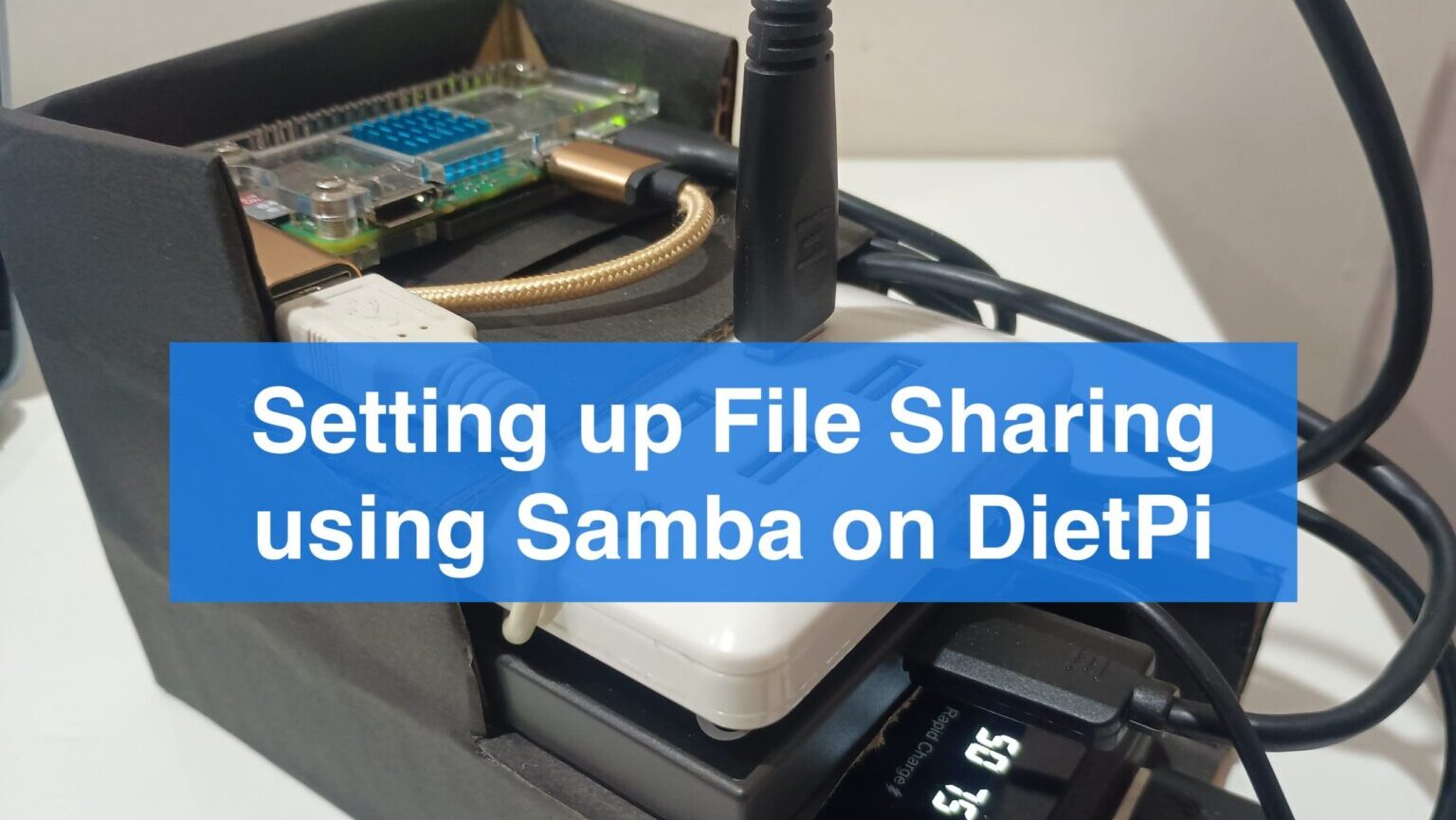
I had already connected a 1TB external HDD to a Raspberry Pi Zero 2 W running DietPi. The drive was mounted successfully at:
/mnt/hdd
Now I wanted every device on my home network to access that storage without unplugging the drive or moving files manually.
Samba turned the Raspberry Pi into a lightweight NAS with surprisingly little effort.
One thing many beginners don’t realize is that Windows file sharing is actually based on SMB (Server Message Block).
Samba is the Linux implementation of that protocol.
That means when you create a Samba share, Windows machines can access it natively.
No additional software is required.
For example:
\\192.168.1.100\Storage
can be opened directly from Windows Explorer.
The same share can also be accessed from Android using an SMB-compatible file manager.
This makes Samba one of the easiest ways to share storage across different operating systems.
Before proceeding, make sure the HDD is already mounted correctly.
A quick check:
df -h
You should see the mounted drive listed.
Also verify that files are visible:
ls /mnt/hdd
If the drive is not mounted properly, fix that first.
Samba cannot share a directory that does not exist.
The installation itself is straightforward.
Update package information:
sudo apt update
Install Samba:
sudo apt install samba -y
After installation completes, verify that the service is running.
systemctl status smbd
You should see the Samba daemon active.
At this stage Samba is installed, but no shared folders exist yet.
One common beginner mistake is assuming Linux users automatically become Samba users.
They do not.
Samba maintains its own password database.
Since the main DietPi account already existed, I added it to Samba.
sudo smbpasswd -a dietpi
Set a password when prompted.
Then enable the account:
sudo smbpasswd -e dietpi
This user will later be used to authenticate when connecting from Windows or Android.
Before making any changes, create a backup.
sudo cp /etc/samba/smb.conf /etc/samba/smb.conf.bak
This takes only a few seconds and makes recovery much easier if something goes wrong.
Whenever modifying configuration files, having a backup is a good habit.
The real magic happens inside:
/etc/samba/smb.conf
Open the file:
sudo nano /etc/samba/smb.conf
Then add the following section near the bottom.
[Storage]
path = /mnt/hdd
browseable = yes
read only = no
writable = yes
guest ok = no
valid users = dietpi
create mask = 0664
directory mask = 0775
force user = dietpi
At first glance, this looks like a lot of settings.
But each one solves a specific problem.
The share name:
[Storage]
becomes the folder name visible on the network.
For example:
\\Pi-IP\Storage
The path:
path = /mnt/hdd
tells Samba which directory should be shared.
In this case, the mounted external HDD.
This setting:
browseable = yes
allows the share to appear when browsing the network.
Without it, users would need to know the exact path.
These options:
read only = no
writable = yes
allow files to be uploaded, deleted, and modified.
Without them, the share becomes read-only.
This line:
guest ok = no
requires authentication.
Only authorized users can access the files.
For personal storage, this is generally the safer choice.
The user restriction:
valid users = dietpi
limits access to the DietPi account created earlier.
Finally:
force user = dietpi
helps prevent many file ownership issues that beginners encounter when using external drives.
After saving the configuration, restart the service.
sudo systemctl restart smbd
Enable automatic startup:
sudo systemctl enable smbd
Now Samba will automatically start after every reboot.
Check service status:
systemctl status smbd
Verify that Samba is listening on network ports:
sudo ss -tlnp | grep smbd
You should see:
445/tcp
139/tcp
These are the standard SMB ports.
Seeing them confirms that Samba is actively accepting connections.
Windows support is built in.
Open File Explorer and enter:
\\<Pi-IP>\Storage
Example:
\\192.168.1.100\Storage
Enter the Samba username and password created earlier.
The external HDD should appear like a normal network drive.
At this point, files can be:
directly from Windows.
This was actually one of the most useful parts of the setup.
Most Android file managers support SMB connections.
Examples include:
Connect using:
smb://<Pi-IP>/Storage
Example:
smb://192.168.1.100/Storage
After entering credentials, the shared HDD becomes accessible directly from the phone.
No USB cable required.
Verify:
systemctl status smbd
If Samba is not running, restart it.
Make sure the Samba account exists:
sudo smbpasswd -a dietpi
Remember:
Linux passwords and Samba passwords are separate.
Check:
writable = yes
and:
force user = dietpi
Many permission issues originate here.
Usually this is not a Samba problem.
Verify that the drive is still mounted:
df -h
If the mount is missing, review the /etc/fstab configuration.
Once Samba was configured successfully, the Raspberry Pi Zero 2 W became much more than a tiny Linux computer.
The setup now included:
Raspberry Pi Zero 2 W
├── DietPi
├── External HDD
├── Auto Mount via fstab
├── Samba Server
└── Network Storage Access
Files could be accessed from:
without physically moving the drive between devices.
Considering the hardware involved was a low-cost Raspberry Pi and an old external hard drive, the result was surprisingly capable.
And for many home users, this setup provides everything needed from a simple NAS.
Setting up Samba is one of those projects that immediately makes a Raspberry Pi more useful.
The installation takes only a few minutes, but the result is a centralized storage location accessible from nearly every device on the network.
Combined with DietPi and an external HDD, Samba transforms a Raspberry Pi Zero 2 W into a practical file server that can run continuously with minimal power consumption.
For anyone planning to build a home NAS, Samba is usually the first service worth learning.

Your information will never be shared with any third party