
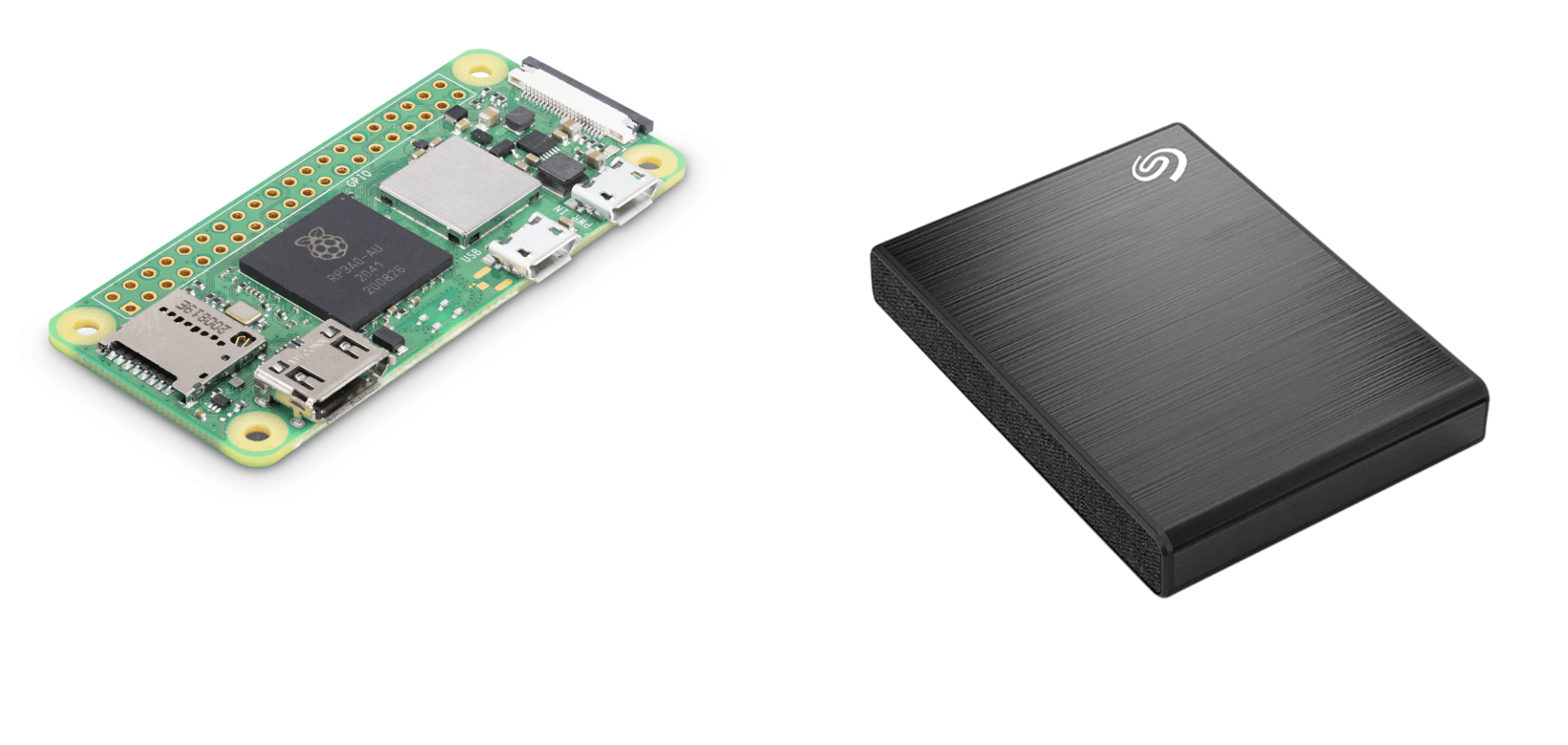
One of the first things many people do after setting up a Raspberry Pi is connect an external hard drive.
Maybe it’s an old 1TB USB drive sitting in a drawer. Maybe you’re building a NAS. Or maybe you simply need more storage than the SD card can provide.
The good news is that Linux can work with both NTFS and exFAT drives quite easily.
The slightly confusing part is that unlike Windows, you can’t always plug in a drive and expect everything to work automatically.
You need to verify that the drive is detected, install the required filesystem support, mount the drive, and optionally configure it to mount automatically after every reboot.
Once you understand those steps, connecting additional storage to a Raspberry Pi becomes straightforward.
A surprisingly common mistake is assuming a mounting problem when the drive is actually not being detected at all.
After connecting the drive, the first thing I normally check is:
lsblk -o NAME,SIZE,FSTYPE,LABEL,MOUNTPOINT,UUID
This command shows:
Example output:
sda1 931.5G exfat Backup Plus
At this point, we already know several useful things:
/dev/sda1If the drive does not appear here, mounting is not the problem. The issue is likely related to USB connectivity or power delivery.
This is especially common when using larger external hard drives with smaller Raspberry Pi models.
Linux supports many filesystems, but some require additional packages.
The package you install depends on how the drive was formatted.
If the drive was previously used with Windows, it is often formatted as NTFS.
Install NTFS support:
sudo apt update
sudo apt install ntfs-3g -y
The ntfs-3g package provides full read and write support for NTFS partitions.
Many newer external drives are formatted as exFAT because it works across:
Install exFAT support:
sudo apt install exfat-fuse exfatprogs -y
Once installed, Linux can access exFAT drives normally.
Linux mounts storage devices into directories.
Before mounting the drive, create a location where the filesystem will appear.
I usually create a simple directory under /mnt.
sudo mkdir -p /mnt/hdd
After mounting, all files stored on the drive will be accessible through:
/mnt/hdd
Keeping mount points organized becomes especially useful once you start adding multiple drives or network storage.
At this stage:
Now the drive can be mounted manually.
sudo mount -t ntfs-3g /dev/sda1 /mnt/hdd
sudo mount -t exfat /dev/sda1 /mnt/hdd
If the command completes without errors, the filesystem is now mounted and available to the operating system.
After mounting, always verify the result before moving on.
A quick storage overview can be displayed using:
df -h
You should see the mounted drive listed in the output.
To confirm that files are accessible:
ls /mnt/hdd
If directories and files appear, the mount is working correctly.
At this point the drive is fully usable.
The only problem is that it will disappear after reboot.
Manually mounting a drive every time the Raspberry Pi starts becomes annoying very quickly.
The proper solution is configuring /etc/fstab.
This file tells Linux which storage devices should be mounted automatically during boot.
Before editing it, identify the drive UUID:
lsblk -o NAME,UUID,FSTYPE
You will see something similar to:
sda1 5F1B-F4B1 exfat
The UUID is important because device names can change.
Today the drive might be:
/dev/sda1
but after reconnecting hardware or adding another USB device it could become:
/dev/sdb1
UUIDs remain constant.
Open the configuration file:
sudo nano /etc/fstab
Add an entry similar to:
UUID=5F1B-F4B1 /mnt/hdd exfat defaults,uid=1000,gid=1000,umask=0002,nofail 0 0
This tells Linux:
For NTFS drives:
UUID=XXXX-XXXX /mnt/hdd ntfs-3g defaults,uid=1000,gid=1000,nofail 0 0
The concept is identical.
Only the filesystem type changes.
One small mistake in fstab can create boot problems.
Before rebooting, always test the configuration.
sudo mount -a
This command attempts to mount everything defined in fstab.
If no errors appear, the configuration is usually correct.
Now reboot the system and verify that the drive mounts automatically.
At first, mounting an external hard drive might seem like a simple Linux task.
But it becomes the foundation for many useful Raspberry Pi projects.
Once the drive mounts automatically, it can be used for:
In my case, this became the first step toward turning a Raspberry Pi Zero 2 W into a lightweight NAS using a 1TB external hard drive.
Without reliable mounting, none of the higher-level services matter.
That is why spending a few extra minutes configuring fstab properly is worth it.
lsblkPossible causes:
Always solve detection problems before troubleshooting mounts.
If files cannot be created or modified, verify:
uid=1000
gid=1000
in the fstab entry.
These options often solve ownership issues.
Check:
sudo mount -a
Any errors reported here usually point directly to the issue.
Common mistakes include:
fstabConnecting an external hard drive to DietPi is not difficult once you understand the workflow.
The process is essentially:
After that, the drive behaves like permanent storage and can be used for everything from simple file storage to a full Raspberry Pi NAS setup.
For many Raspberry Pi projects, this is one of those small setup tasks that only takes a few minutes but becomes incredibly important later.

Your information will never be shared with any third party